
How to Find the Right WiFi Router: A Step-by-Step Guide
Finding the perfect WiFi router for your home or office can feel like navigating a dense forest without a compass. With countless models, specifications, and marketing jargon, the task can quickly become overwhelming. However, by breaking down the process into manageable steps, you can confidently identify a router that meets your specific needs, ensuring a smooth, fast, and secure internet experience. This comprehensive guide will walk you through everything from understanding your personal WiFi demands to optimising your router’s performance.
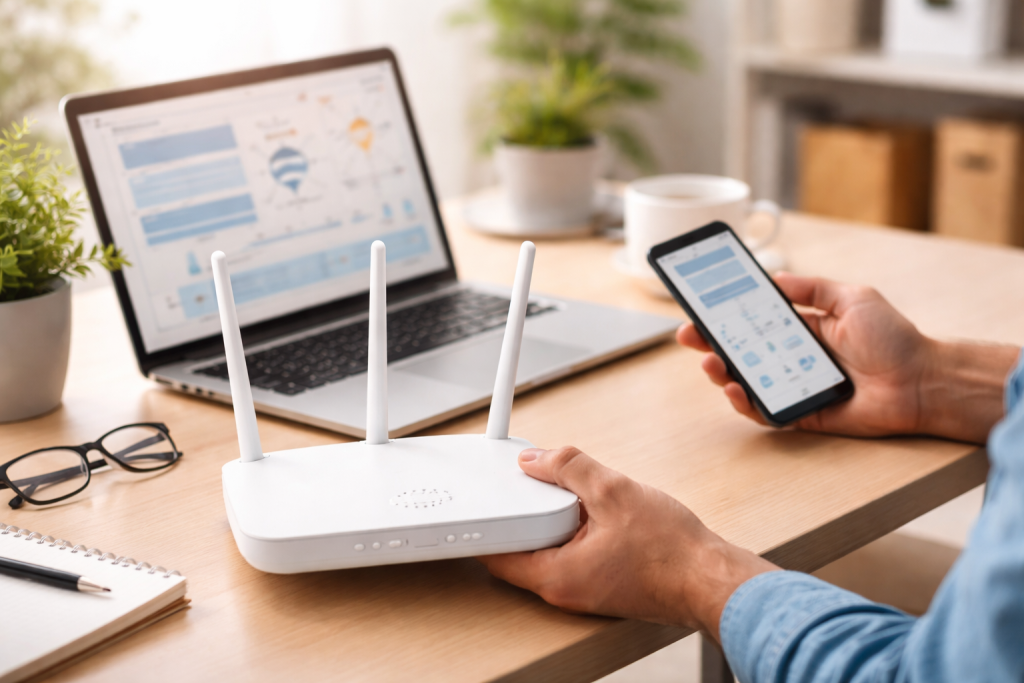
Before you even begin looking at hardware, the most crucial first step is to accurately assess your current and future WiFi requirements. This introspection will serve as your blueprint, guiding your subsequent research and purchase decisions. Without a clear understanding of your needs, you risk overspending on features you don’t require or, worse, underspending and ending up with a device that can’t keep up.
Contents
- 1 Identifying Your Internet Service Provider (ISP) Speed
- 2 Counting Connected Devices and User Profiles
- 3 Mapping Your Home Layout and Square Footage
- 4 Understanding Router Generations (Wi-Fi 6, Wi-Fi 5, etc.)
- 5 Exploring Standard Wireless Routers vs. Mesh WiFi Systems
- 6 Considering Specialized Router Features (Gaming, Parental Controls)
- 7 Deciphering Wireless Standards and Throughput
- 8 Evaluating Antenna Design and Beamforming Technology
- 9 Understanding Dual-Band vs. Tri-Band Routers
- 10 Exploring Encryption Protocols (WPA2, WPA3)
- 11 Considering Built-in Firewalls and Parental Controls
- 12 Investigating Router Firmware and Automatic Updates
- 13 Setting a Realistic Budget
- 14 Reading Professional and User Reviews
- 15 Checking for Warranty and Customer Support
- 16 Following Manufacturer Instructions for Initial Power-Up
- 17 Accessing the Router’s Web Interface for Customization
- 18 Customizing WiFi Names (SSIDs) and Passwords
- 19 Performing Basic Troubleshooting Steps
- 20 Optimizing Router Placement and Antenna Orientation
- 21 Updating Firmware and Adjusting Advanced Settings
Identifying Your Internet Service Provider (ISP) Speed
Your router can only be as fast as your internet connection allows. If your ISP plan provides 100 Mbps, investing in a router capable of 1000 Mbps won’t miraculously make your internet faster. Crucially, you need a router that can at least handle your ISP’s advertised speeds to avoid bottlenecks. Check your internet bill or contact your ISP to confirm your current download and upload speeds. It’s also wise to consider if you plan to upgrade your internet plan in the near future, as purchasing a future-proof router can save you hassle and money down the line.
Counting Connected Devices and User Profiles
Think about every device that connects to your WiFi network. This includes not just laptops and smartphones but also smart TVs, gaming consoles, smart home devices like thermostats and security cameras, tablets, and even smart appliances. A household with two people and a few devices will have vastly different router demands than a large family with multiple simultaneous users, each streaming high-definition content, gaming online, or participating in video conferences. The more devices and the more demanding their activities, the more robust a router you’ll need.
Mapping Your Home Layout and Square Footage
The physical environment of your home plays a significant role in WiFi performance. Large homes, multi-storey houses, and those with thick walls or many obstructions (like large appliances or plumbing) will require a router with greater range and potentially mesh capabilities to ensure consistent coverage. Sketch out your home layout mentally or on paper, noting potential dead zones or areas where a strong signal is critical. For smaller apartments, a basic router might suffice, but larger residences often benefit from advanced features like multiple antennas or, as we’ll discuss later, a mesh WiFi system.
Once you have a clear picture of your needs, it’s time to explore the vast landscape of available routers. The market is populated by various types, each designed to cater to different scenarios and user demands. Understanding these distinctions is key to making an informed choice.
Understanding Router Generations (Wi-Fi 6, Wi-Fi 5, etc.)
Router technology evolves, and each new generation brings improvements in speed, efficiency, and capacity. Currently, Wi-Fi 6 (802.11ax) is the latest mainstream standard, offering significant advantages over its predecessor, Wi-Fi 5 (802.11ac). Wi-Fi 6 is particularly beneficial in environments with many connected devices, as it employs technologies like OFDMA and MU-MIMO to handle multiple streams more efficiently. While Wi-Fi 5 routers are still perfectly capable for many users, especially those with fewer devices or lower internet speeds, opting for Wi-Fi 6 is a good future-proofing strategy, especially as more devices come equipped with Wi-Fi 6 capabilities.
Exploring Standard Wireless Routers vs. Mesh WiFi Systems
The traditional wireless router broadcasts a signal from a single point. For smaller homes, this is often perfectly adequate. However, for larger homes, multi-storey buildings, or homes with many dead spots, a single router can struggle to provide consistent coverage. This is where mesh WiFi systems come into play. A mesh system consists of a main router and several satellite units placed strategically throughout your home. These units work together to create a single, seamless WiFi network, eliminating dead zones and providing a stronger, more consistent signal everywhere. While generally more expensive, mesh systems offer unparalleled coverage and ease of use for expansive spaces.
Considering Specialized Router Features (Gaming, Parental Controls)
Beyond basic connectivity, some routers offer specialised features that cater to specific user needs. Gamers might look for routers with QoS (Quality of Service) settings that prioritise gaming traffic, minimising latency and lag. Families, on the other hand, might prioritise robust parental controls, allowing them to filter content, set time limits for internet access, and monitor online activity. Other features to consider include USB ports for network storage or printer sharing, guest networks for visitors, and advanced security settings.
These two factors are arguably the most focused-upon aspects when buying a router, and for good reason. They directly impact your daily internet experience. A router’s specifications will usually highlight its theoretical maximum speed and its antenna configuration, which relates to its range.
Deciphering Wireless Standards and Throughput
As mentioned, Wi-Fi 6 offers higher theoretical throughputs than Wi-Fi 5. Within each standard, routers are typically classified by their aggregate speed across all bands (e.g., AX1800, AX6000). A higher number generally indicates a faster router. However, remember that actual speeds will always be limited by your ISP plan and the capabilities of your connected devices. A router with AX1800 might be sufficient for a 300 Mbps internet plan, while a gigabit plan would benefit from an AX6000 or higher.
Evaluating Antenna Design and Beamforming Technology
The number and type of antennas on a router directly influence its range and signal strength. Routers with multiple external antennas often provide better coverage and can be adjusted for optimal signal direction. Beamforming is a technology that intelligently directs the WiFi signal towards connected devices, rather than broadcasting it indiscriminately. This focused transmission results in a stronger, more reliable connection, especially at greater distances. Look for routers that explicitly mention beamforming in their features list.
Understanding Dual-Band vs. Tri-Band Routers
Most modern routers are dual-band, meaning they broadcast on two frequencies: 2.4 GHz and 5 GHz. The 2.4 GHz band offers wider coverage and better penetration through obstacles but is generally slower and more susceptible to interference. The 5 GHz band provides faster speeds and less interference but has a shorter range. Tri-band routers add a second 5 GHz band, effectively doubling the capacity for high-bandwidth devices. This is particularly useful in dense network environments with many demanding devices, as it allows for better distribution of traffic and reduced congestion.
In an increasingly connected world, the security of your home network is paramount. A good router offers robust security features to protect your data and privacy from unauthorised access and cyber threats. Neglecting this aspect can leave your network vulnerable.
Exploring Encryption Protocols (WPA2, WPA3)
The most fundamental security feature is the encryption protocol used to secure your wireless network. WPA2 (Wi-Fi Protected Access II) has been the standard for many years and offers strong encryption. However, WPA3, the latest standard, provides even more robust security, including individualised data encryption and enhanced protection against brute-force attacks. While WPA2 is still perfectly acceptable, especially for older devices, opting for a WPA3-compatible router future-proofs your network and offers the highest level of security.
Considering Built-in Firewalls and Parental Controls
Most routers come with a built-in firewall, which acts as a barrier between your home network and the internet, preventing unauthorised access. Beyond basic firewalls, some routers offer advanced features such as intrusion detection systems (IDS) and intrusion prevention systems (IPS), which actively monitor for and block malicious activity. As mentioned earlier, robust parental controls are essential for families, allowing for content filtering, time limits, and activity monitoring to ensure a safe online environment for children.
Investigating Router Firmware and Automatic Updates
Router firmware is the operating system that runs your router. Regular firmware updates are crucial for patching security vulnerabilities, improving performance, and adding new features. Look for routers from reputable manufacturers that consistently release firmware updates. Even better, some routers offer automatic firmware updates, ensuring your device is always running on the latest, most secure software without manual intervention.
With your list of desired features in hand, you’re ready to narrow down your choices by considering cost and the experiences of other users. This final stage of research can save you from buyer’s remorse.
Setting a Realistic Budget
Router prices can vary wildly, from under $50 for basic models to several hundred dollars for high-end mesh systems or gaming routers. Determine a realistic budget based on your needs and the features you’ve prioritised. Remember that a higher price doesn’t always guarantee the best solution for your specific requirements. Sometimes, a moderately priced router with the right features outperforms an expensive one that has extraneous capabilities you’ll never use.
Reading Professional and User Reviews
Before making a final decision, delve into professional reviews from reputable tech websites and, crucially, user reviews on e-commerce platforms. Professional reviews often provide in-depth performance benchmarks, feature analysis, and comparisons with competing models. User reviews, on the other hand, offer insights into real-world experiences, highlighting ease of setup, actual signal strength in various home environments, reliability issues, and customer support experiences. Pay attention to recurring complaints or praises, as these can be strong indicators of a router’s true strengths and weaknesses.
Checking for Warranty and Customer Support
A good warranty and responsive customer support can be invaluable if you encounter any issues with your router. Before purchasing, verify the manufacturer’s warranty period and research their customer support reputation. Easy access to technical assistance can save you considerable frustration down the line if you need help with setup, troubleshooting, or understanding advanced features.
Once you’ve purchased your new router, the journey isn’t over. Proper setup and configuration are essential to unlock its full potential and ensure a secure, high-performing network.
Following Manufacturer Instructions for Initial Power-Up
Every router comes with a quick start guide or a more detailed manual. It’s imperative to follow these instructions diligently for the initial power-up and connection. This typically involves connecting the router to your modem and a power outlet, then connecting a computer via Ethernet for initial configuration. Do not skip steps, as doing so can lead to connectivity issues or an insecure network.
Accessing the Router’s Web Interface for Customization
Most modern routers are configured through a web-based interface. After connecting your computer, you’ll open a web browser and type in the router’s default IP address (often printed on a sticker on the router itself or in the manual). From this interface, you can change the default WiFi name (SSID) and password, which is a critical security step. You can also configure advanced settings, such as guest networks, parental controls, and QoS settings.
Customizing WiFi Names (SSIDs) and Passwords
Immediately change the default WiFi names and passwords. Default credentials are often generic and easily guessable, making your network vulnerable. Choose strong, unique passwords that combine uppercase and lowercase letters, numbers, and symbols. Create distinct SSIDs for your 2.4 GHz and 5 GHz bands if your router offers this, making it easier to manage which devices connect to which frequency.
Even with the perfect router, you might encounter issues or wish to further enhance your network’s performance. Knowing how to troubleshoot common problems and
Optimising settings can make a significant difference.
Performing Basic Troubleshooting Steps
When connectivity issues arise, start with the basics. First, reboot your modem and router by unplugging them for 30 seconds and then plugging them back in. This often resolves minor glitches. Check all cable connections to ensure they are secure. If only one device is affected, the problem might lie with that device rather than the router. Run a speed test to ascertain if the issue is with your internet service or your internal network.
Optimizing Router Placement and Antenna Orientation
The physical placement of your router is crucial. Centralise it as much as possible within your home, preferably in an open area away from obstacles like thick walls, large appliances, and metal objects. Avoid placing it near cordless phones, microwaves, and baby monitors, as these can cause interference. If your router has external antennas, adjust their orientation. Experimenting with different angles can sometimes significantly improve signal strength in certain areas.
Updating Firmware and Adjusting Advanced Settings
Regularly check for and install firmware updates, even if your router doesn’t automatically update. These updates often include performance enhancements and bug fixes. Within your router’s web interface, explore advanced settings. You might be able to adjust channel settings to avoid interference from neighbouring networks, enable QoS to prioritise certain types of traffic, or fine-tune transmit power if supported to optimise your signal for your specific home environment. Consistent maintenance and proactive optimisation will ensure your router continues to deliver the best possible internet experience.

GoLiveXora is managed by a passionate content creator dedicated to helping people improve their everyday lives through practical knowledge and modern solutions.